1.Practical implementation
Scenario: 1.Disable run 2.Unified background across the domain
Disable run
First on the AD :
- Open the Domain Controller
- From Start => Search for Group Policy Management Console (GPMC).
- Create a new GPO
- Right click on the Domain → choose Create a GPO in this domain, and Link it here.
- Name it Disable_Run
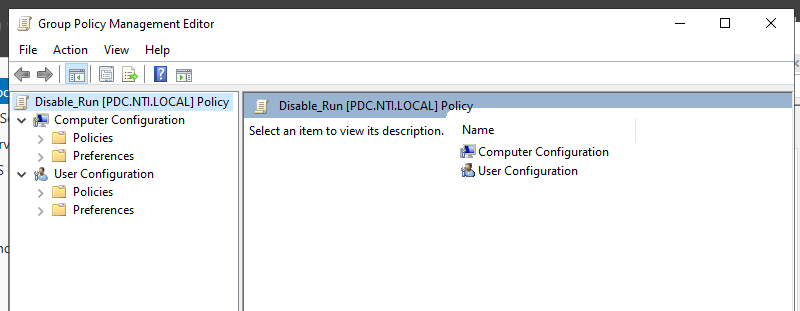
- Right click on the GPO → choose Edit
-
From the Group Policy Management Editor:
- open User Configuration :
- → Administrative Templates
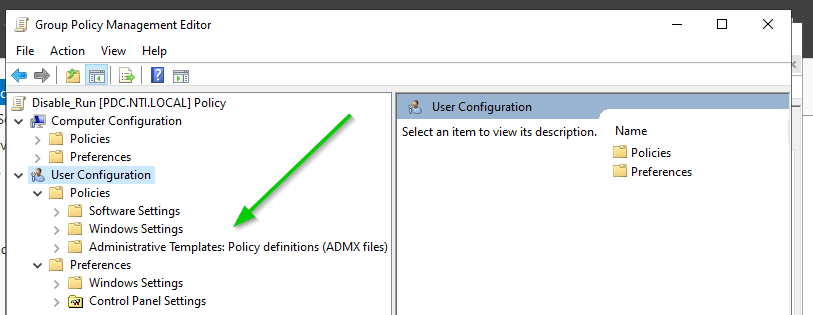
-
→ Start Menu and Taskbar
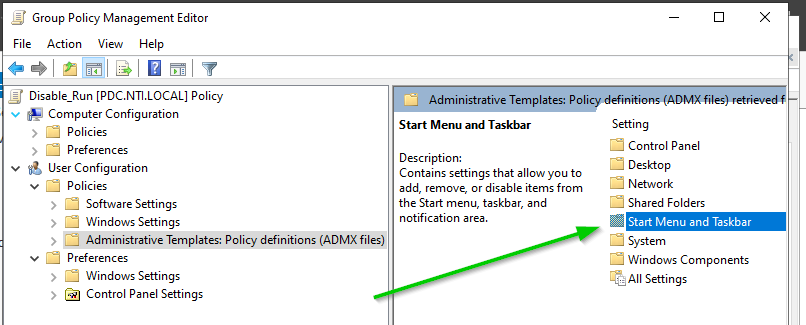
-
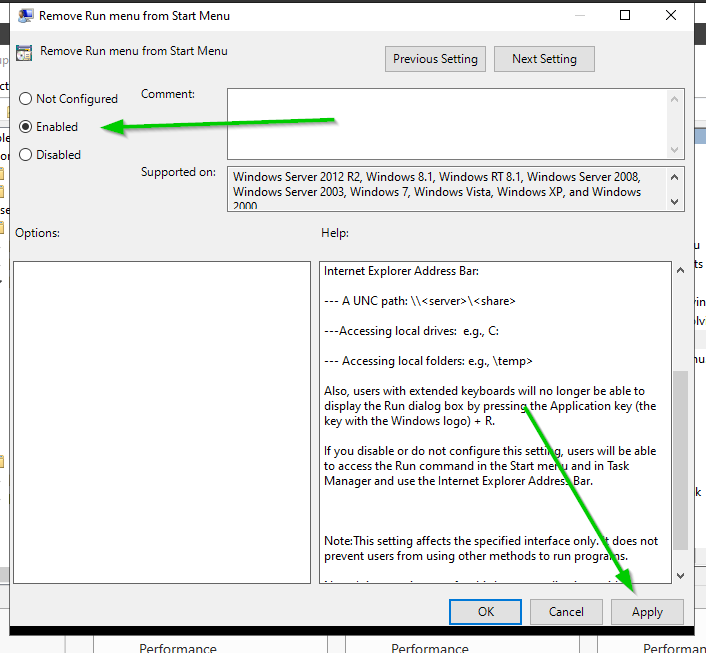
Locate Remove Run menu from Start Menu :
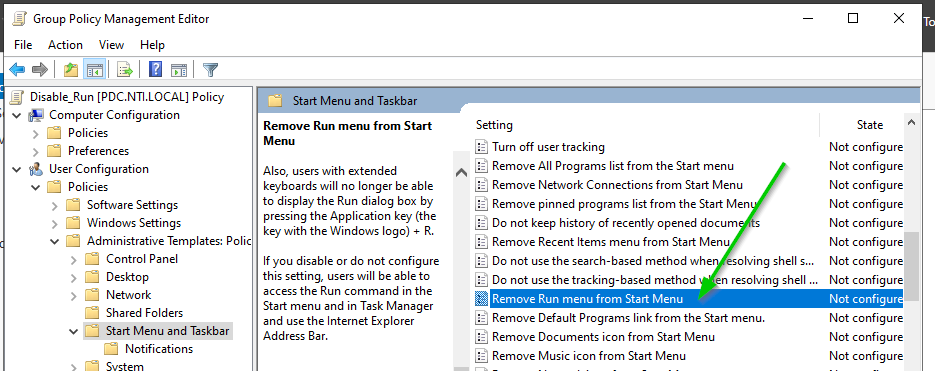
-
Double-click on it → select Enabled → Apply → OK :
-
THE BIG ERRORR And Solved :
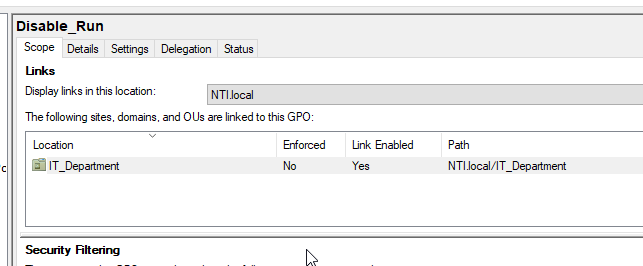
- Here I faced a problem, the user I rented was in an old OU, so I had to make a link between them as follows :
- Open Group Policy Management (GPMC).
- Locate the OU containing the user (IT_Department).
-
Right-click on it and select Link to an Existing GPO.
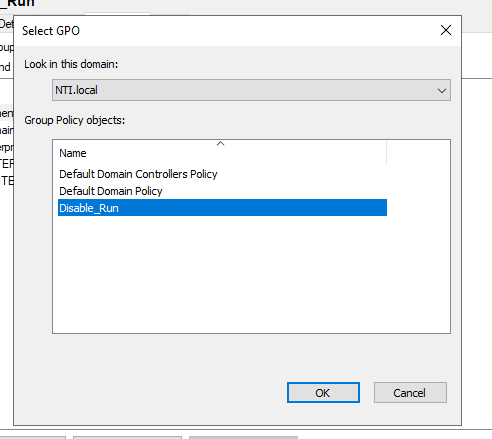
- Select the GPO you created (Disable_Run)
- After linking:
- Open the GPO → Scope tab → Make sure Authenticated Users is present in Security Filtering :
- Select the GPO you created (Disable_Run)
Secondly, on the Client :
Go to the Client device and do the following:
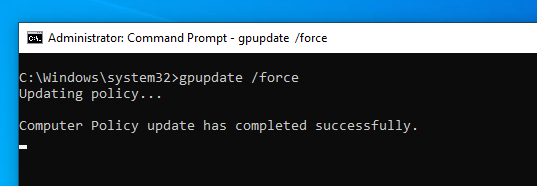
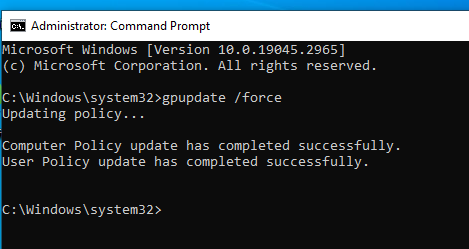
- open CMD :
-
-
This will perform a forced Group Policy update, so that the changes you made to the Domain Controller are immediately applied to the device.
After solving the problem on the client device:
-
On Client VM :
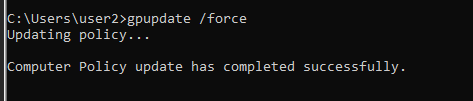
-
After logging back in as User2 → try:
-
Win + R → It doesn't open.
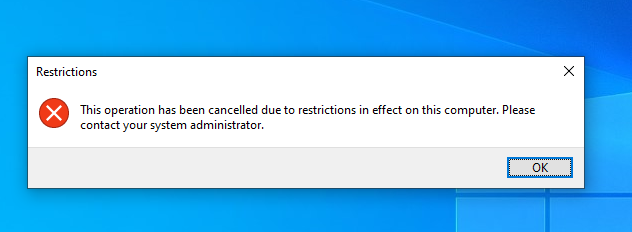
-
DONE
----
Steps to create a unified background across the domain :
-
Prepare the background image 1. Prepare the image (for example: wallpaper.jpg). 2. Place it in a shared folder on the Domain Controller or any server.
- Make it available to users as read-only:
- Right click → Properties → Sharing → Advanced Sharing → Share.
- Permissions → Everyone → Read ✅.
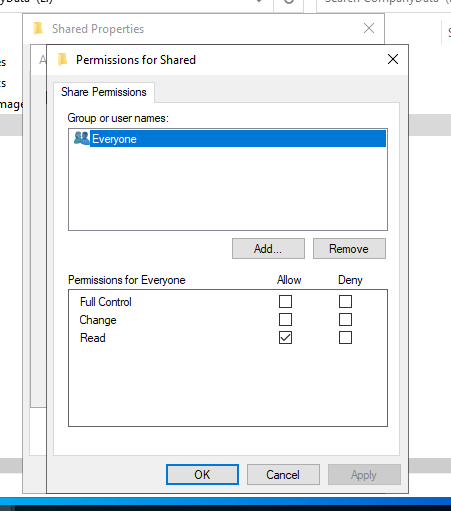
- Make it available to users as read-only:
-
2- Create a Group Policy
- Open Group Policy Management (GPMC).
- Right-click the Domain (NTI.local) → Create a GPO in this domain, and Link it here.
- Name it, for example: Domain_Background :
-
Edit the policy
- Right-click the GPO (Domain_Wallpaper) → Edit.
- From the Group Policy Management Editor, go to:
- User Configuration
- → Administrative Templates
- → Desktop → Desktop
-
Right-click on Desktop Wallpaper.
-
Choose: Enabled.
- In Wallpaper Name, enter the full path to the image:
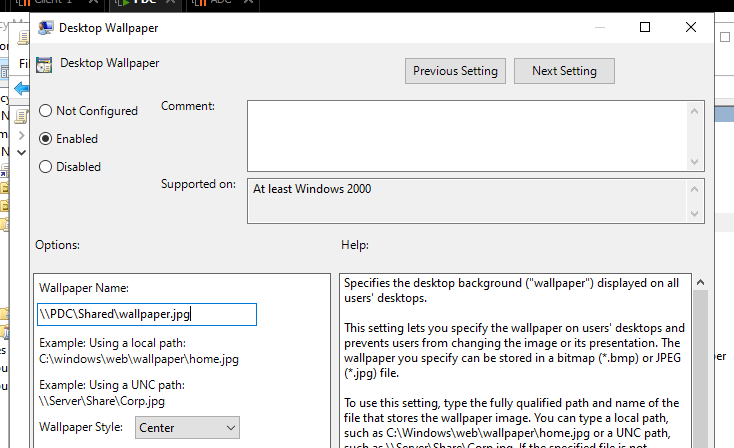
-
In Wallpaper Style → choose (Fill / Stretch / Center). => Apply → OK.
-
Don't forget to link the GPO to the OU
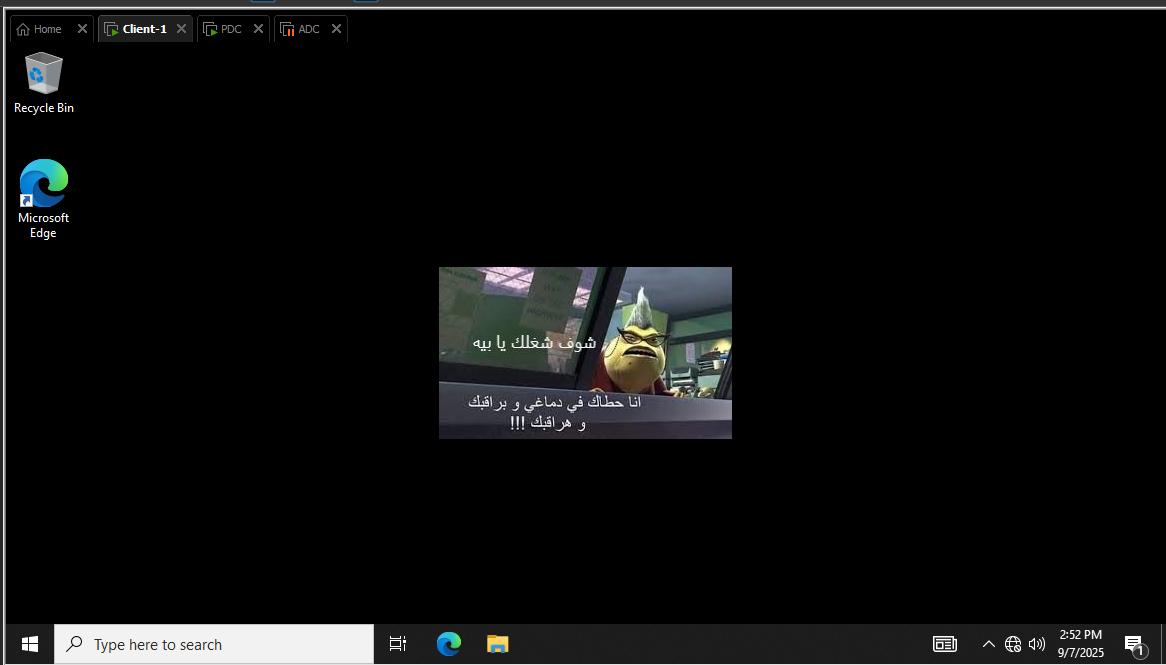
on the Client :
On any Client device :
On the client :
✅ Lab is Done