1.Practical implementation
The scenario says we have an HR department and we want to: - Apply two printers: one in color for the HR Manager, and one in black & white for the rest of the employees. - A specific employee in the department is strictly prohibited from printing. - All of this is done through a Group Policy (GPO), not manually.
1️⃣ Prepare Active Directory :
First :
- we have Active Directory. We will go through the next steps.
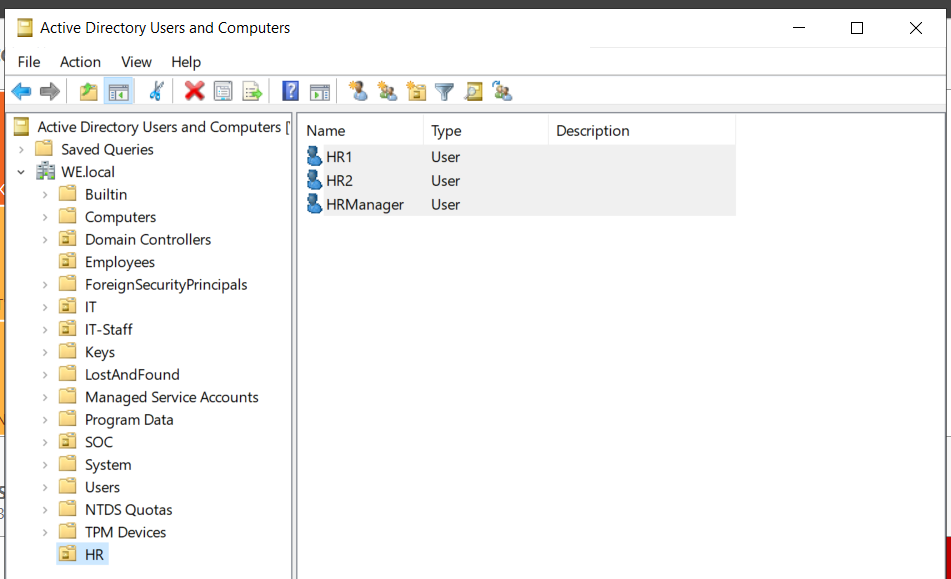
Second, create an OU for users :
- Open Active Directory Users and Computers (ADUC).
- Right-click Domain → New → Organizational Unit.
- Name it HR.
Third: Create Users :
- Inside the HR OU → Right-click → New → User.
- Create the users:
- HRManager
- HR1
- HR2
2️⃣ Adding the Print and Document Services Role
- Open Server Manager.
- Manage → Add Roles and Features.
- Next until you reach Server Roles.
- Enable Print and Document Services.
- Enable Print Server under it.
- Next → Install.
3️⃣ Add the two printers to the server :
- Open Devices and Printers
- From Run and type:
control printers
First printer :
- Add a Printer => Add Printer Wizard.
- Choose the adding method.
- Choose Add a local printer or network printer with manual settings.
- Choose a printer port: You can choose LPT1.
-
Choose Driver (Manufacturer / Printers).
- Manufacturer: Microsoft.
-
Printers:
- For the first printer, choose Open XPS (it will be HR_Color_Printer).
- Then, share this printer so that:
- Share name: HR_Color_Printer
- Location: C:\HR_Color_Printer
The second printer :
- Add a printer => Add a printer wizard.
- Choose the addition method.
- Choose to add a local printer or a network printer with manual settings.
- Choose the printer port: you can choose LPT1.
- Choose the driver (manufacturer/printers).
-
Manufacturer: Microsoft.
-
Printers:
- For the first printer, choose XPS (it will be HR_BW_Printer).
- Then, share this printer as follows:
- Share name: HR_BW_Printer
- Location: C:\HR_BW_Printer
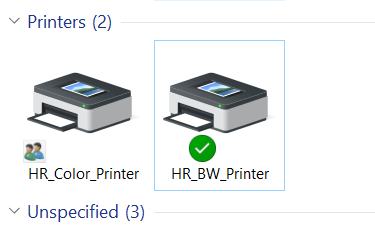
Make sure the two printers are shared :
- Right-click each printer → Printer Properties.
- Tab Sharing → Share this printer.
- I did this above.
4️⃣ Create Security Groups :
- Open ADUC.
-
In OU HR → Right-click → New → Group.
-
For each group:
- Right-click on the HR OU → New → Group.
- This will open the New Object – Group box:
- Group Name: Enter the name of the group (HR-Managers).
- Group Scope: Set it to Global.
- Group Type: Set it to Security.
- Click OK.
- Repeat the same steps for the second group: HR-Staff.
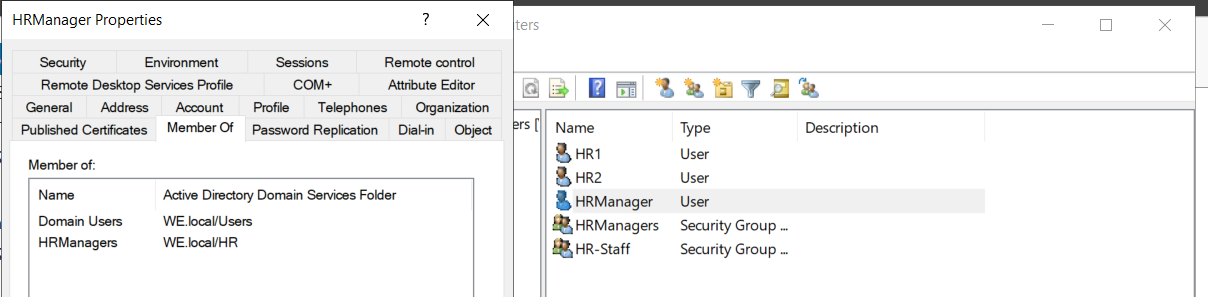
Confirm Addition :
- Open any user you added → Member Of tab → You will see the group they joined :
5️⃣ Setting Printer Permissions (On the Server Itself)
🔹 Color Printer (HR_Color_Printer) - Open Devices and Printers. - Right-click HR_Color_Printer → Printer Properties. - Security tab: - Remove Everyone if present. - Click Add → Add the HR-Managers group. - Under Permissions → Check Print. - Click Apply.
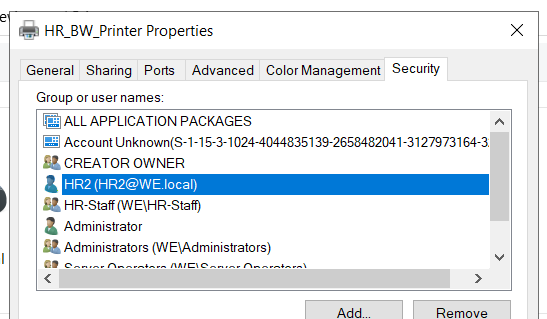
🔹 Black & White Printer (HR_BW_Printer)
- Right-click HR_BW_Printer → Printer Properties → Security.
- Remove Everyone
- Click Add → Add the HR-Staff group.
- Permissions → Check Print.
- Click Apply.
🔹 Prevent a Specific Employee from Printing
- In the same Security tab, for any printer that was previously able to print to:
- Click Add → Add the employee's name (HR2).
- Permissions → Check Deny in front of Print.
- Click Apply.
6️⃣ Distributing Printers Using Group Policy
🔹 Open Group Policy Management - From the server → Start → Run →
gpmc.msc
- Press Enter.
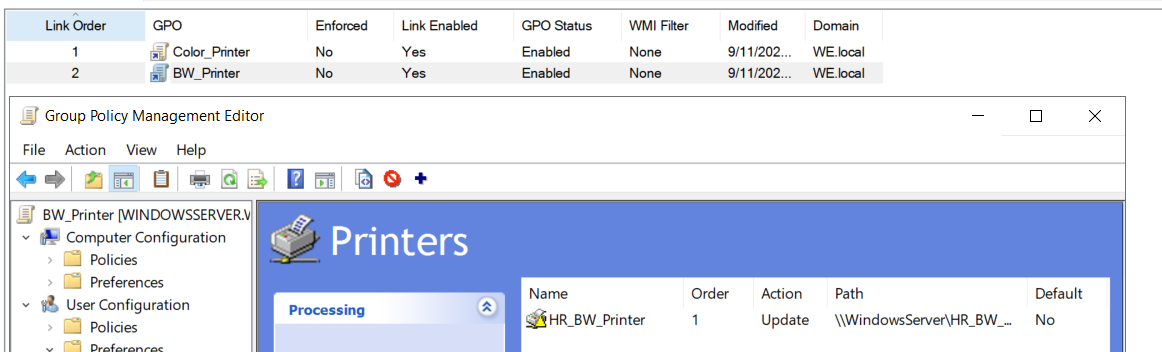
🔹 Create a GPO for each printer - In the HR OU → Right-click → Create a GPO in this domain, and link it here. - Name it, for example: Color_Printer. - Repeat the same step for the black-and-white printer: BW_Printer.

🔹 Edit the GPO for Printer Distribution
For each GPO: 1. Right-click the GPO → Edit.
-
Computer Configuration or User Configuration → Preferences → Control Panel Settings → Printers.
-
Right-click → New → Shared Printer.
-
In the dialog box:
- Action: Update.
- Share Path:
\\WindowsServer\HR_Color_Printer
-
OK.
-
Repeat the same step for the second printer:
\\WindowsServer\HR_BW_Printer
7️⃣ Use Security Filtering to apply the GPO to the appropriate groups
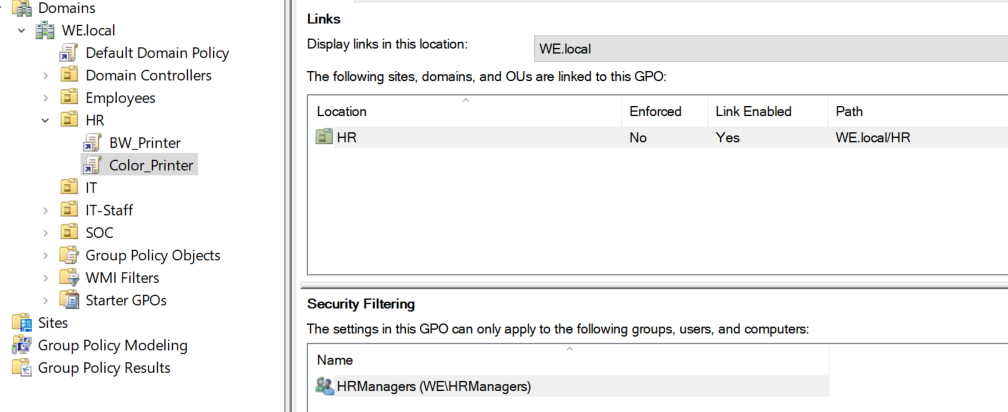
- In Group Policy Management for each GPO:
-
Under Security Filtering:
- Remove Authenticated Users.
- Click Add → Add the appropriate group:
-
HR-Managers for Deploy_Color_Printer.
-
HR-Staff for Deploy_BW_Printer.
-
Apply.
8️⃣ Update Group Policy on Users' Devices
- On users' devices (or on the server for testing):
gpupdate /force
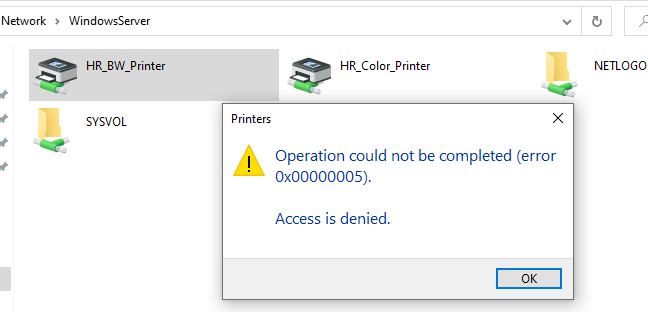
- On each device you press Ctrl+R type this command:
\\WindowsServer
The shared printers will appear and this will allow him to download them.
-
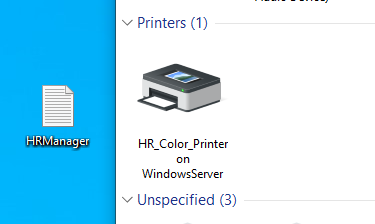
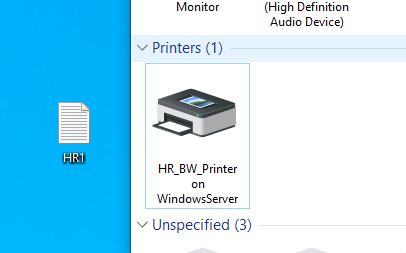
Log in to the different users (HRManager – HR1 – HR2) and verify:
-
HRManager sees the color printer and can print.
-
HR1 sees the black-and-white printer and can print.
-
HR2 cannot print (depending on the Deny).
Active Directory & Printer Deployment Status
| Requirement | Implemented? | Notes |
|---|---|---|
| HR Department in Active Directory | ✅ Yes | Created an OU named HR. |
| Users: HRManager, HR1, HR2 | ✅ Yes | Created users within the HR OU. |
| Color Printer for HRManager only | ✅ Yes | Created HR_Color_Printer and granted permissions to the HR-Managers group. |
| B&W Printer for other staff | ✅ Yes | Created HR_BW_Printer and granted permissions to the HR-Staff group. |
| Restrict specific user (HR2) from printing | ✅ Yes | Applied Deny permissions for HR2 on both printers. |
| Use Group Policy (GPO) for deployment | ✅ Yes | Created a GPO for each printer and linked them to the correct groups. |
| Security Filtering on GPO | ✅ Yes | Removed Authenticated Users and added the specific target groups. |
| GPO Update on client machines | ✅ Yes | Executed gpupdate /force and verified printer access. |